dpa-SportsLive is modular in design: whether tables, results, or live tickers – each type of result and content has its own dedicated widget. All widgets can be quickly embedded as graphical elements into web articles, websites, or event landing pages using an embed code. They are also suitable as teaser elements, for example on the homepage, to link to dedicated sports special pages.
CONTENT
The setup page
The configuration of the widgets is done via a setup page, which you can access after placing an order in the dpa shop or which will be provided to you by us.
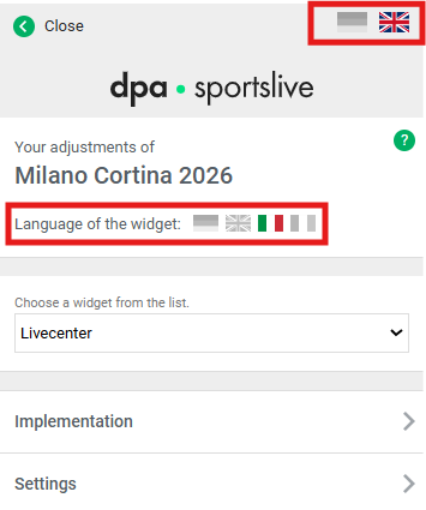
Language selection
You can select the language using the flag icons.
Widget selection and configuration
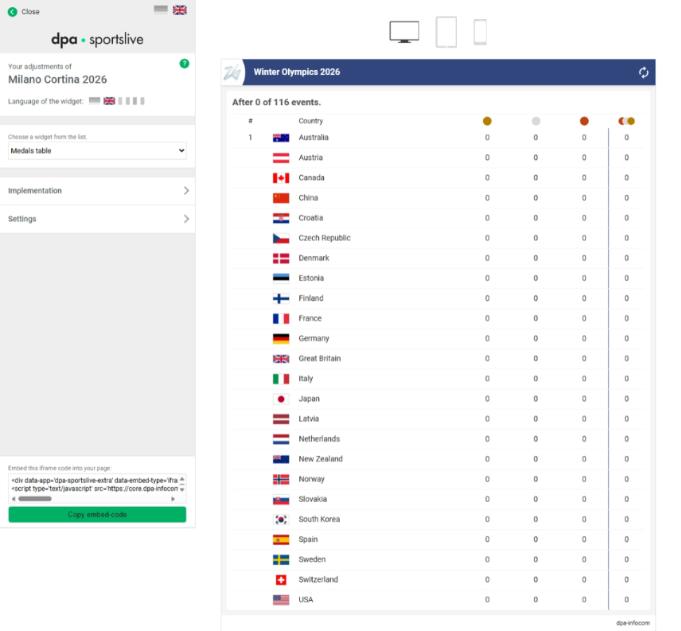
The setup page initially provides a selection option (dropdown) for each widget. Select the widget you want to configure and embed, for example the medal table:
Embedding
After selecting the widget, choose the type of embedding.
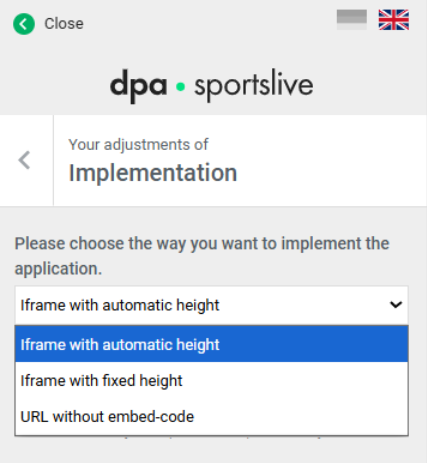
iFrame with automatic height adjustment (standard):
Here, the height of the iFrame is automatically set to the height of its content via the script dpa.js. After embedding it into your website, no further action is required. Please enable the Require option if you are using the JavaScript library require.js on your website, and additionally enter the name of your require instance.
iFrame with fixed height:
If your CMS does not allow the integration of scripts, or if you cannot or do not want to include external scripts, a simple iFrame is provided here.
URL without embed code:
If your CMS already creates iFrames for external content, you will receive the plain link to the widget here.
Widget width
By default, our widgets are displayed with a width of 100% to ensure responsive behavior across different devices.
Fonts and Colors: Custom Adjustments
Important update: You can no longer make your own adjustments using a custom style CSS.
Adjustments & Change Requests
Custom adjustments can still be implemented by us on your behalf.
The following adjustments are possible:
Font
Font color
Highlight color ( = header color, highlight color of the selected menu item, highlight color of the current date/day, highlight colors within the overview) - Default is: Blue #333366
To ensure we can implement your requests correctly, please provide us with the following information no later than January 29 th, 2026:
The URL of your setup page, as well as the relevant domains. If you require different customizations for different domains, please inform us of these as soon as possible.
The desired font
The corresponding color values (hex codes)
After review, we will apply the adjustments centrally to your widget.
Important: Afterwards, you must regenerate the embed codes for your widgets on your setup page.
Widgets
Live Center: Configuration (deep link)
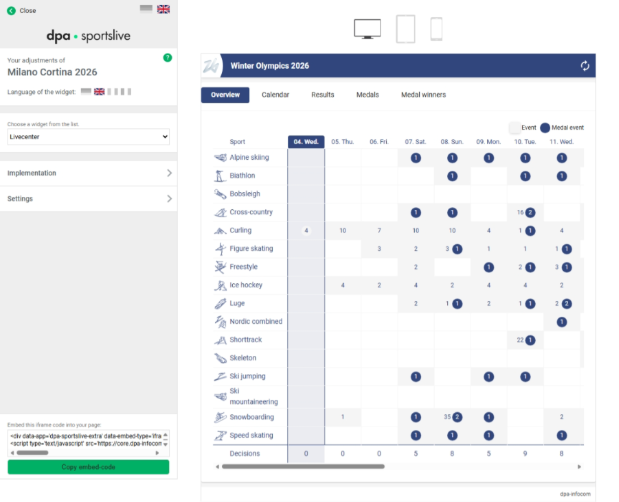
In the Live Center, the individual widgets are bundled together, and their content can be selected by the user via the main menu. By default, the Live Center starts with the main menu item Overview.
The Live Center can be configured via Settings with the respective main menu item. The Live Center will then start with this selected menu item, for example “Calendar”:
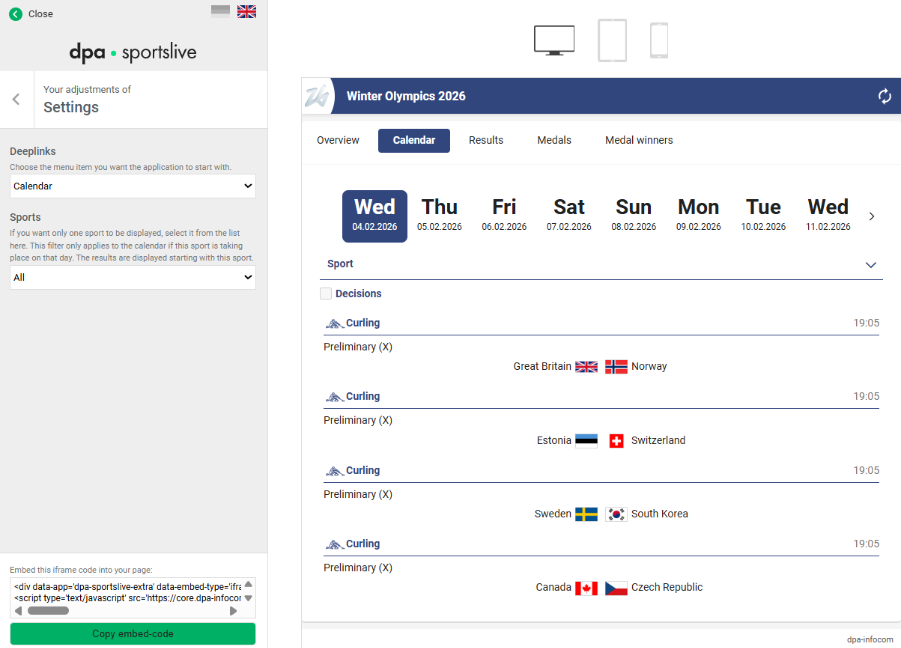
A sport can also be prefiltered using the second dropdown.
Links within the Live Center
Within the Live Center, the content is linked as follows:
By clicking on a competition in the Overviewthe user is taken to the corresponding event in the Calendar.
By clicking on an event in the Calendar, the user is taken to the detailed results of that event.
Medal Table
This widget displays the overall medal standings.
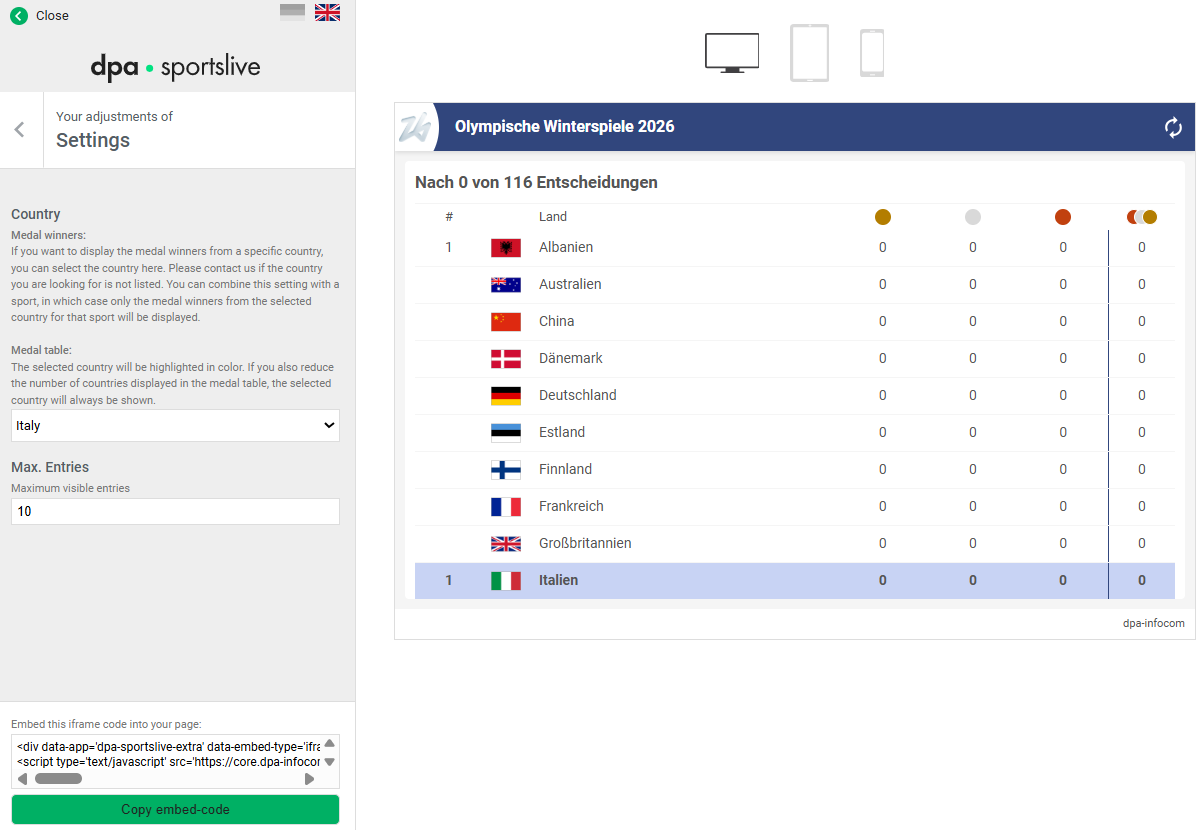
Configuration of the Medal Table
You can configure your medal table via Settings:
- After selecting a country, the chosen country will be highlighted in color in the widget. If you also reduce the number of countries displayed in the medal table, the selected country will always be shown, even if its ranking is outside the maximum number of entries.
- Using Max. Entries, you can limit the length of the medal table to your desired size.
Medal Winners
This widget displays all medal winners, filterable by sport or country.
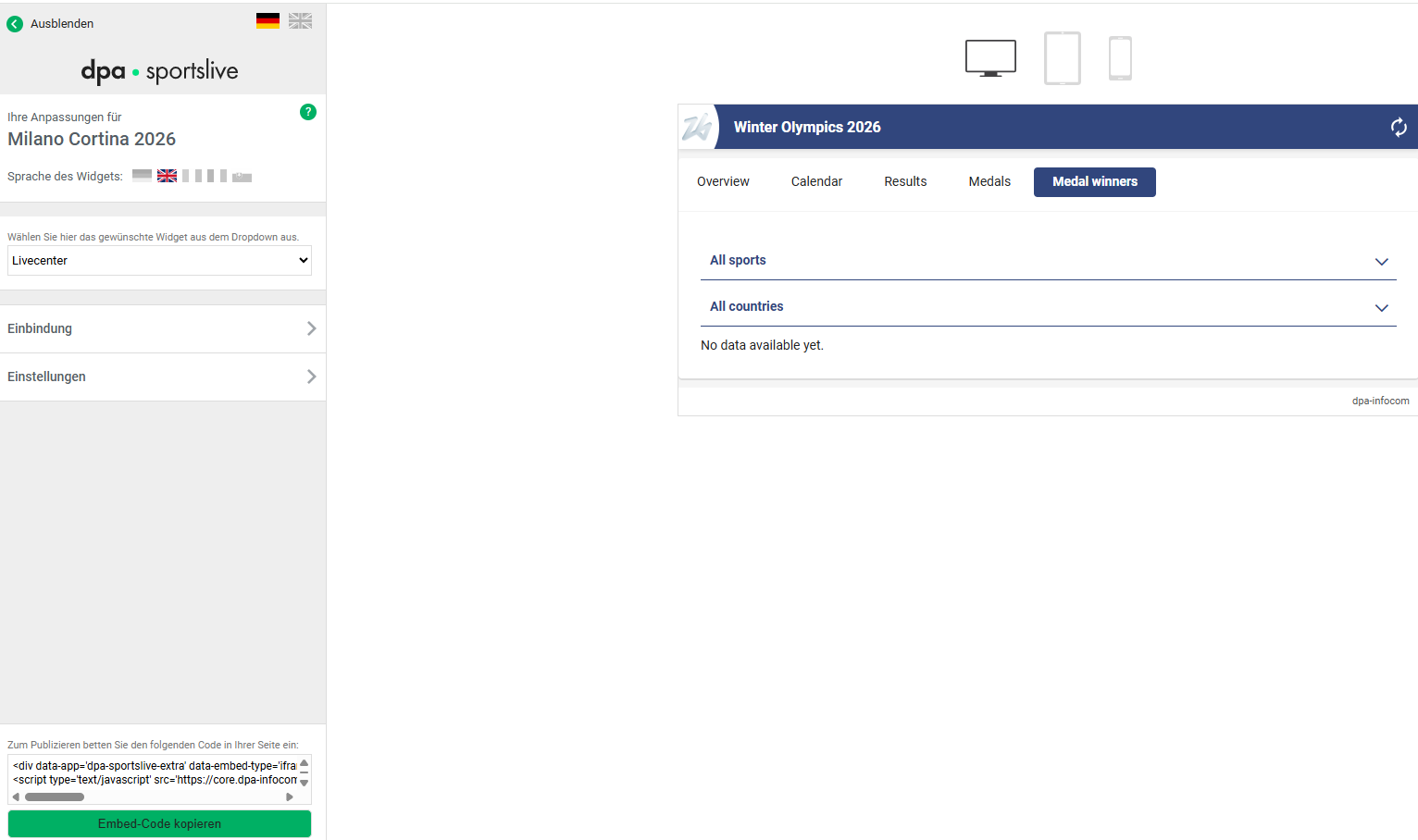
Display of Medal Winners with Data from the 2022 Winter Olympics: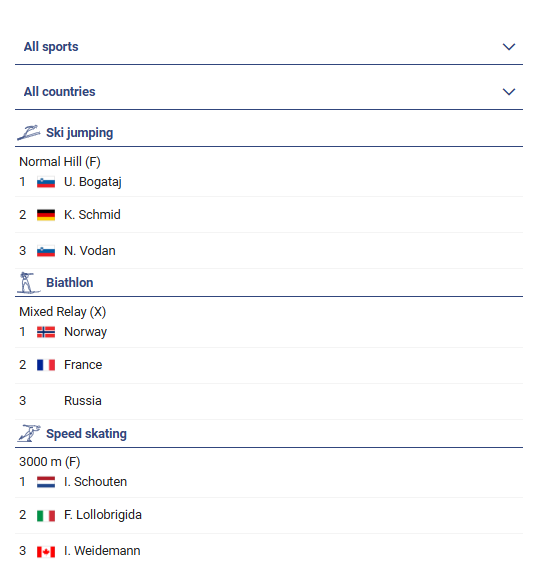
Via Settings the filter can be configured for a specific sport and/or country, so that the widget always starts with the selected filter. (Accordingly, such a preset can also be configured for medal winners in the Livecenter.)
Today's fixtures ans results
This widget displays all events and results of the respective day in chronological order.
Scheduled events are converted into results as soon as a competition, heat, or match has finished.
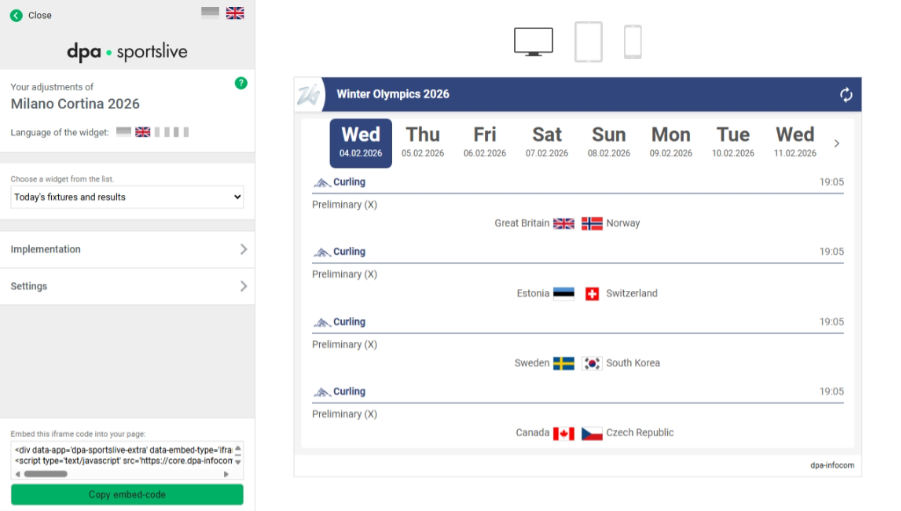
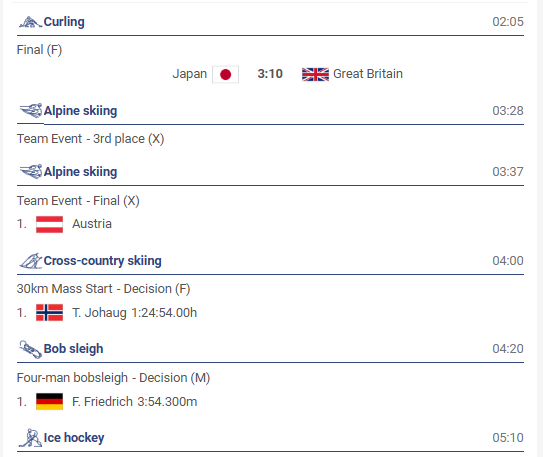
Fixtures with Results from the 2022 Winter Olympics:
Widget Configuration Options
Configure the widget in Settings:
- Max. entries limits the number of appointments/results shown at startup.
Today's decisions
This widget displays the medal-deciding events of the respective day. The first decisions take place on Saturday, February 7 (automatic start date).
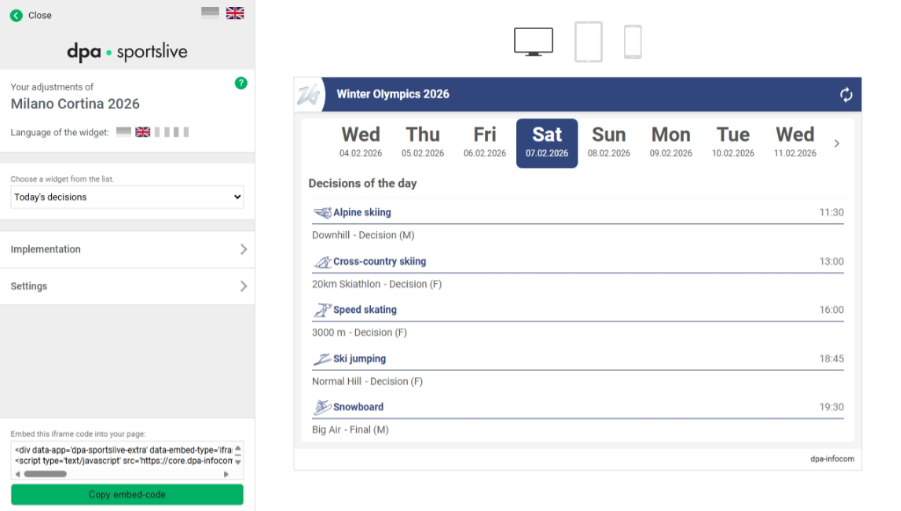
Widget Configuration Options
Configure the widget in Settings:
- Max. entries limits the number of appointments/results shown at startup.
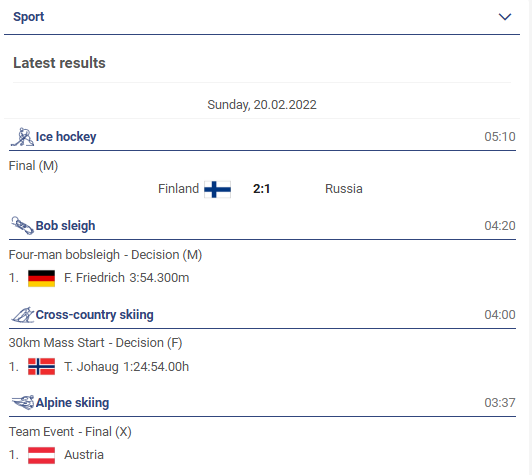
Results
This widget displays all results for the sports and disciplines, as soon as a competition, heat, or match has finished.
It can be configured for a specific sport so that the widget always starts with that sport. (Accordingly, such a preset can also be configured for results in the Livecenter.)
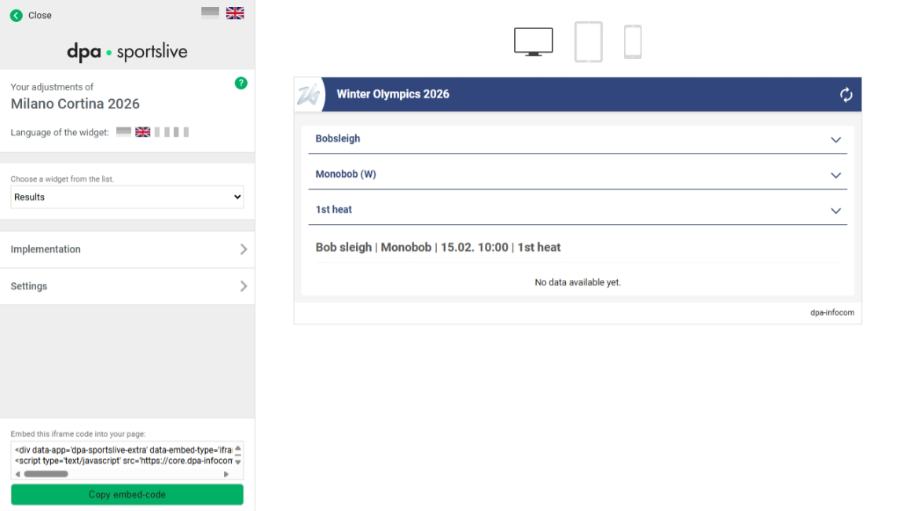
Results with Data from the 2022 Winter Olympics:
Add-ons
In addition to the sports widgets, we provide twointeractive add-ons. They can also be embedded using the embed code from the setup page.
Venues
The widget displays all 15 venues of the Olympic Games. Each venue is clickable and opens a map with additional information. In the settings, you can configure the first entry of the web gallery to open automatically when loaded. Users can sort the venues within the add-on using the sorting field in the top left by name, location, or (if available) by capacity.
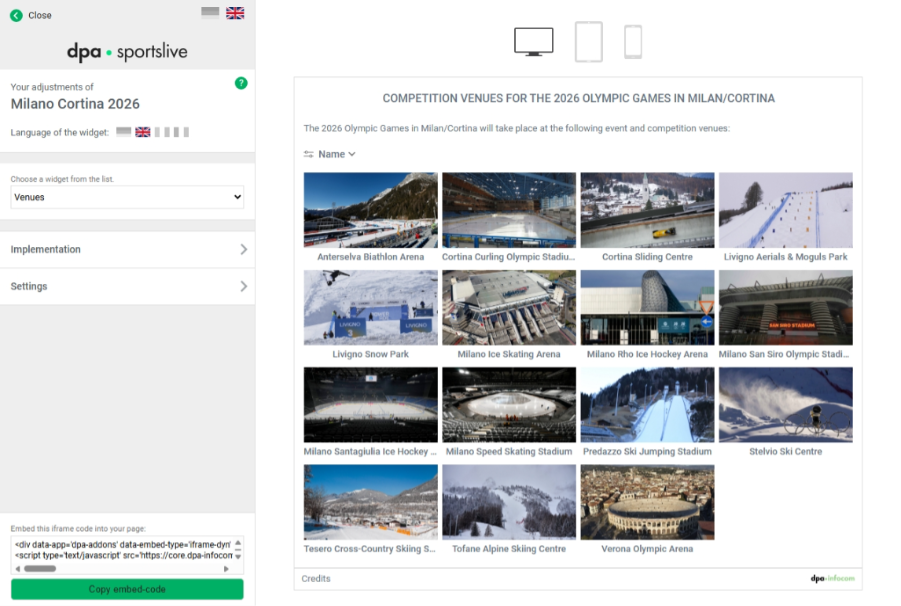
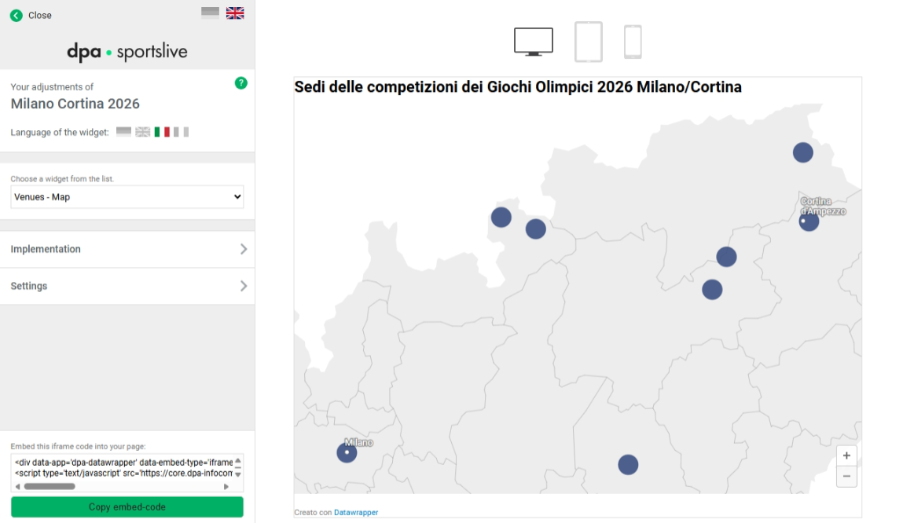
Map
This widget is a Datawrapper application and displays all eight locations in Italy where competitions of the Olympic Games are held. The locations are clickable on the map and open a tooltip with all associated venues, including an image, sports, name, and—where available—capacity.